You may need to reset your Dashboard password if you've forgotten the password you previously used, if you suspect your password may be compromised, or just to keep it fresh and secure.
Steps to reset your Zai Dashboard password
- Go to the Zai Dashboard login page and select Reset password.
- Enter your registered email address and select Reset password again to request the reset email.
- Check your inbox for an email containing your verification code and a link to the Set Password page.
- Once you receive your verification code, click the reset password link in the email, or copy this link manually in a new browser tab: https://dashboard.hellozai.com/set-password?confirmation_code=true (This helps avoids any issues caused by existing cached sessions or the link opening inside your email app's built-in browser.)
- On the Set Password page, enter your new password, confirm it, and enter the verification code exactly as provided.
- Select Set password to complete the reset.
Notes:
- Your password must be a minimum of 8 characters, and include at least 1 uppercase character and 1 special character.
- If you haven't received the reset email within 5 minutes, try checking your spam or junk folder. This may also indicate that the email address used is not registered as a Zai Dashboard user. Contact our Support team if you need to set up a new user.
- Once a password reset is initiated, the verification code and reset link are only valid for 24 hours. We recommend entering the verification code and setting your new password as soon as possible after receiving the email, ideally within the same session.
Troubleshooting
If you see the message "Something went wrong. Try refreshing the page"
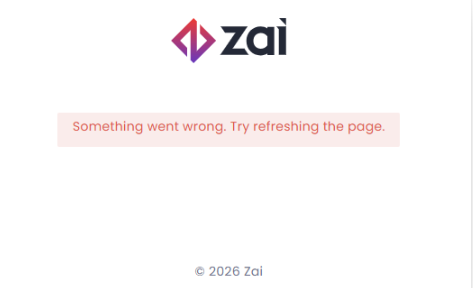
This error usually points to a browser or session issue rather than a problem with your account. Try the following, in order:
- Open the page in a private/incognito window, or try a different supported browser. This rules out cached data or browser extensions interfering with the page.
- Clear your browser cache and cookies for the Zai Dashboard domain, then try the reset process again from the login page.
- Avoid multiple repeated attempts with an incorrect verification code or password, as this can cause the reset session to fail. If this happens, start the reset process again from step 1 to receive a fresh code.
- Check the link hasn't expired. If more than 24 hours have passed since you requested the reset, request a new one rather than reusing the old verification code from your email.
If you require further assistance, please contact our Support team.
Was this article helpful?
That’s Great!
Thank you for your feedback
Sorry! We couldn't be helpful
Thank you for your feedback
Feedback sent
We appreciate your effort and will try to fix the article